Invite parents to receive feedback emails
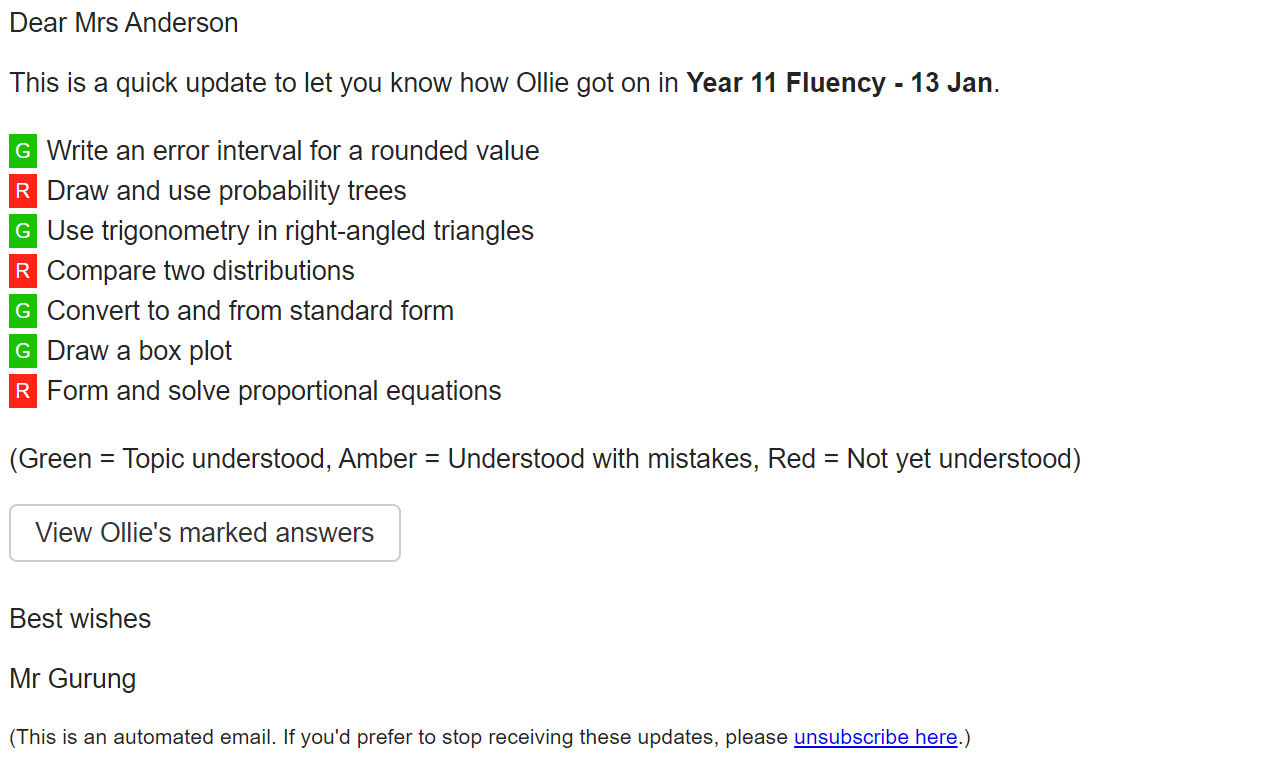
When you have marked a test, you can email the results to students and parents at the click of a button.
Example parent email:
Sending parent registration links
To register parents for feedback emails, you need to send a mail merge to invite them to opt in. We provide an email template and spreadsheet of registration links, which can be downloaded with full instructions from Admin > Parent Registration.
Dear [Parent Salutation]
At [School], we use a platform called MiniTest to securely scan and mark students' written assessments online. This helps us give high-quality feedback and provides teachers with valuable insights about strengths and development areas throughout the year.
We greatly value parental involvement and invite you to sign up for feedback emails whenever we mark [Student]'s work. These emails will show which topics are understood or not yet understood, and always include a link for you to view your child's scanned work.
To opt in for these feedback emails, please register here (this link is personalised for your child, so don't forward it to anyone else):
[Unique Registration Link]
Please note that privacy is important to us, and MiniTest adheres to robust data protection policies that have been approved by the school. If you sign up for feedback emails, your email address will only ever be used for this purpose. You can unsubscribe at any time.
Thank you for your continued support and commitment to your child's education.
Best wishes
[Your Name]
[School]
Emailing test results
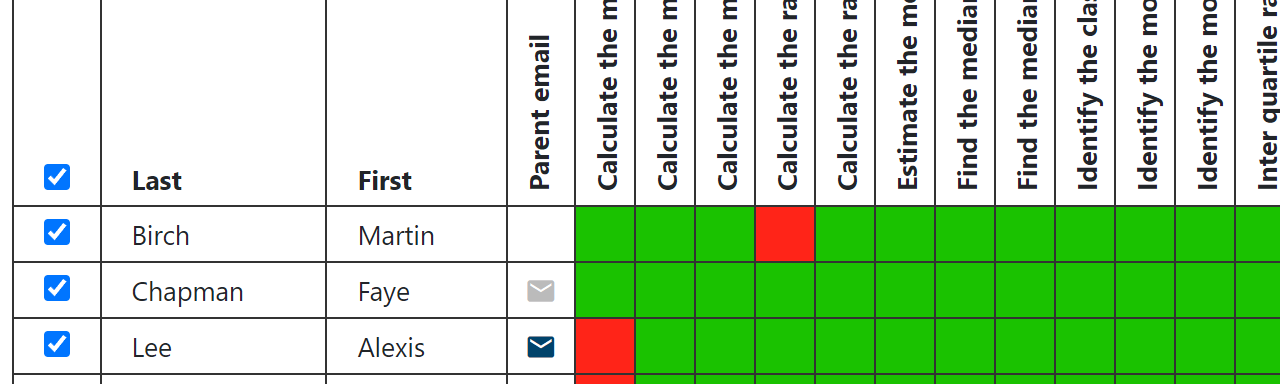
When a student has at least one parent registered for feedback emails, an envelope icon appears next to their name on the Analysis page. This is initially grey, and turns blue once a feedback email has been sent. We do not track whether emails are opened.
In the example below:
- Martin does not have any parents registered for emails.
- Faye has a parent registered, but they have not yet been sent feedback for this test.
- Alexis has a parent registered, and the feedback email has been sent.
To send feedback:
- Go to MiniTest and open the test you have marked.
- Click "Analyse results".
- Use the checkboxes to select any number of students.
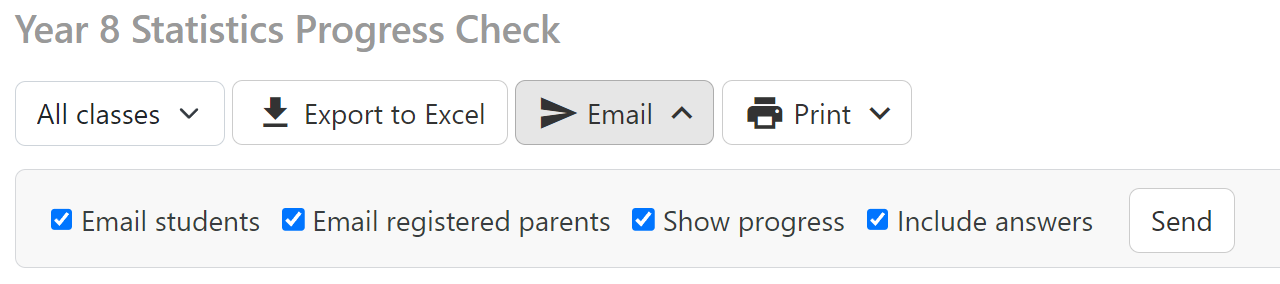
- At the top of the page, click "Email".
- Make sure "Email registered parents" is selected, and click "Send".
Once a parent has been emailed test feedback, it is not possible to send them the same feedback again (if you click the "Send" button, you will receive a success message but no repeat emails will be sent). This is to avoid inadvertently hassling parents with duplicate messages. If a parent misplaces an original feedback email, the easiest option is to re-send it to the student, and they can ask their child to forward it on.