Track progress over multiple tests
As well as analysing results for individual tests, you can create trackers to monitor students' understanding across whole units or schemes. To view all trackers, hover over your name in the top-right corner and select 'View trackers'. You can also select a class on the homepage to view its specific trackers.
Trackers always show students' most recent results for each topic, taking into account all tests completed. Hovering over any cell shows a result history, so you can identify topics which were once red but have since turned green (or vice versa). You can also use the progress highlighting feature to show all topics which students have improved since a given date.
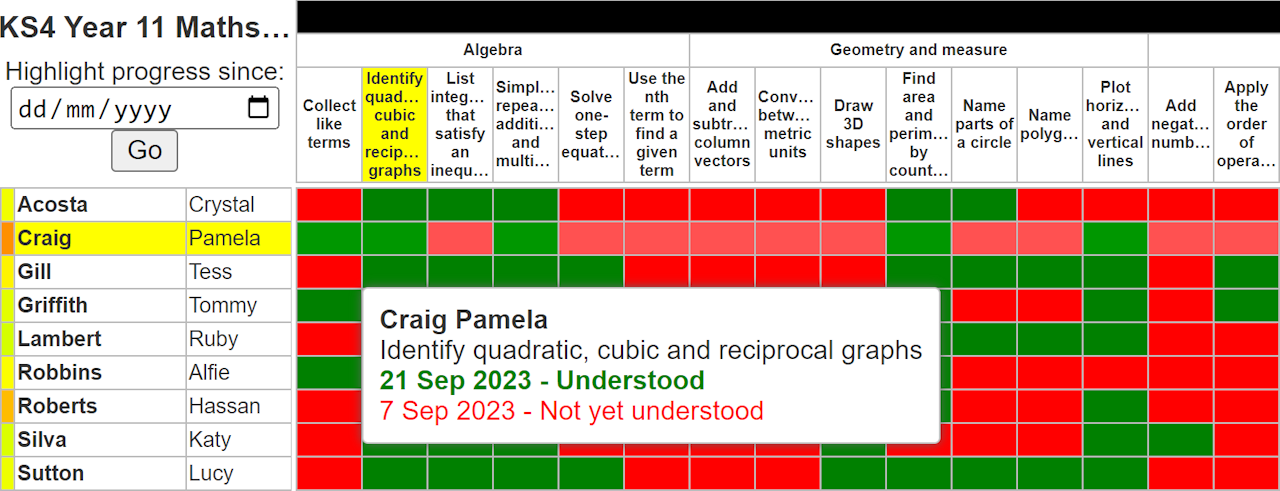
At the bottom of the screen, there is an option to copy the tracker to the clipboard. This can then be pasted into a spreadsheet for further analysis.
Trackers can only be created and edited by your school's MiniTest admin user.
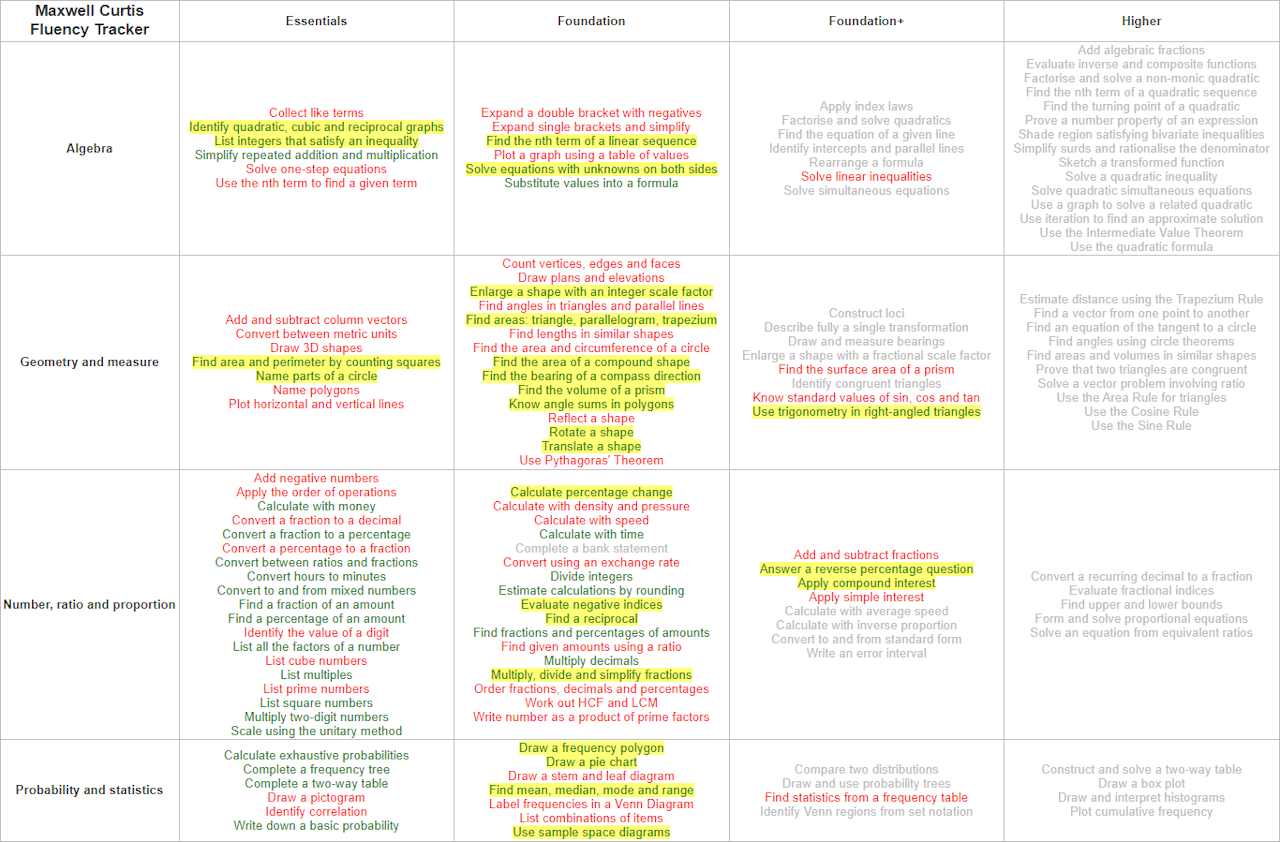
GCSE Maths fluency checklists
Another feature is specifically available to classes studying GCSE Maths. On the MiniTest homepage, click your class name and select 'Print fluency checklists'. This shows students' understanding across all the highest-frequency topics, in a format that can be easily printed and stuck in student books. As above, topics can be highlighted to show progress.