Update users
Schools on our latest paid plan can use Wonde to automatically sync data from SIMS, Arbor, Bromcom, and many other MIS providers.
These instructions apply to schools on our free trial and schools that are not using Wonde.
Before you use MiniTest, your school admin needs to import two data files in comma-separated (.CSV) format:
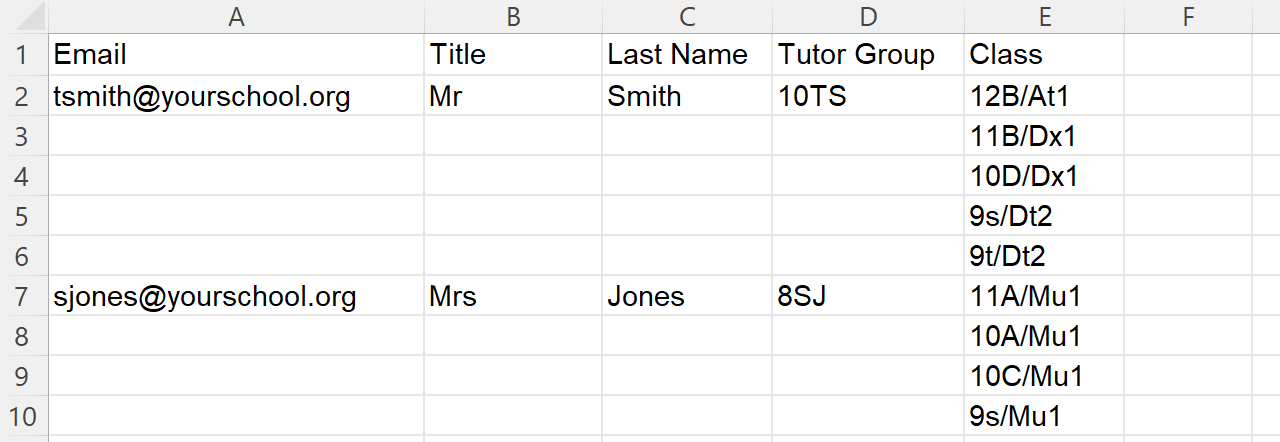
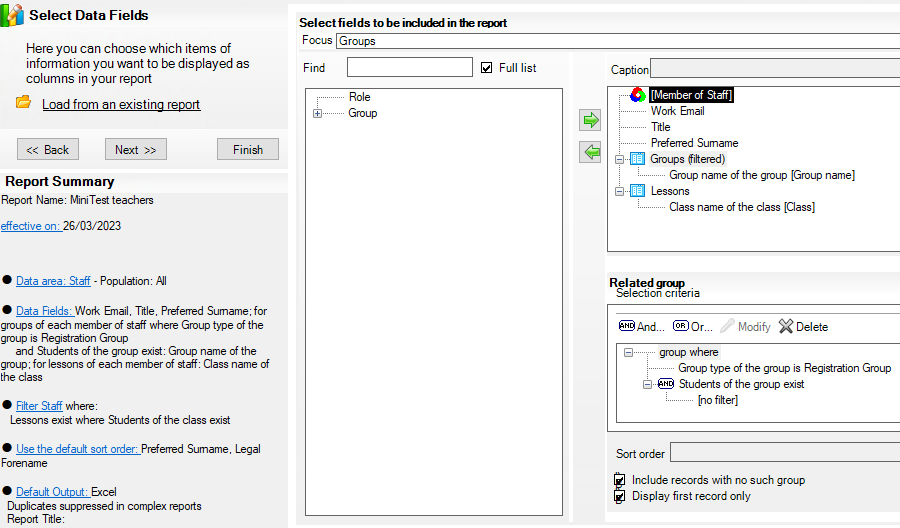
- teachers.csv – columns: Email, Title, Last Name, Tutor Group, Class
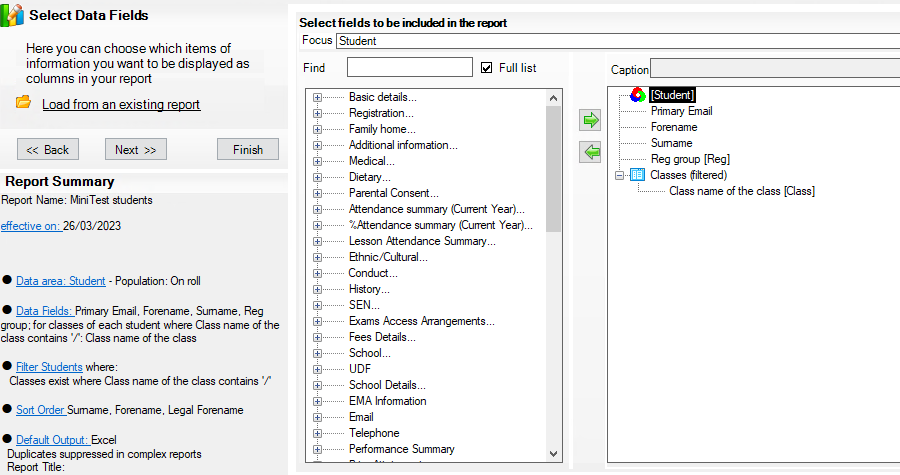
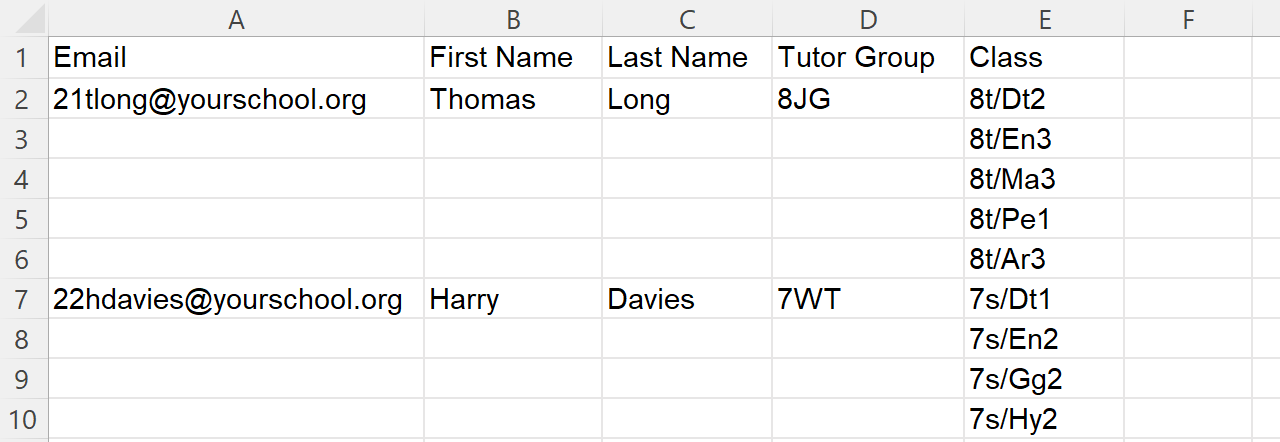
- students.csv – columns: Email, First Name, Last Name, Tutor Group, Class
Updated versions of these files should be re-imported every time your students, teachers, or classes change. You always need to upload complete data files containing all teachers and all students. Any existing users not included in your data files will be archived.
To import your files:
- Hover over your name in the top-right corner and click "Admin".
- Click "Update users".
- Select your teacher and student files, and click "Upload".
- If any classes have changed, users will need to sign out and sign back in again to see the changes.
Creating the files using a spreadsheet
For a small number of users, you can create the CSV files manually using spreadsheet software such as Microsoft Excel or Google Sheets.
When you save them, select the "CSV UTF-8 (Comma delimited) (*.csv)" option.
Teachers CSV file:
Students CSV file:
Exporting from your Management Information System
You may be able to ask your Data Manager to generate the files from your Management Information System. Once a report is set up, it can easily be run again in the future. For example, here are some screenshots of how you might set up the reports in SIMS .net.
Teachers report in SIMS .net:
Students report in SIMS .net: