Use on-screen testing
As an alternative to printing tests on paper and scanning them back in, students can login to handwrite their answers on screen. This requires touchscreen laptops or tablet devices.

To use on-screen testing:
- First create your test and upload a blank copy of the test paper. Tests created from the Question Bank have blanks included automatically.
- Begin your lesson and get students signed in to the MiniTest website on their devices. Establish silent test conditions.
- On the test overview page, click 'Start on-screen testing'. Students may need to refresh the homepage to see the test appear.
- Students handwrite their answers on the screen, ideally using a stylus. When they are finished, they click 'Submit' to upload their work.
- After all students have submitted their answers, click 'Finish on-screen testing'.
- Students' work is immediately available for marking.
Multiple classes can take a test at the same time, and the start/stop controls apply to all classes at once. In this situation, it is advisable to keep the test active until the end of the lesson to make sure all classes have finished. Once a test is stopped, no students are able to submit.
Tablets work best in landscape orientation (mobile phones are not supported).
Using the on-screen testing platform
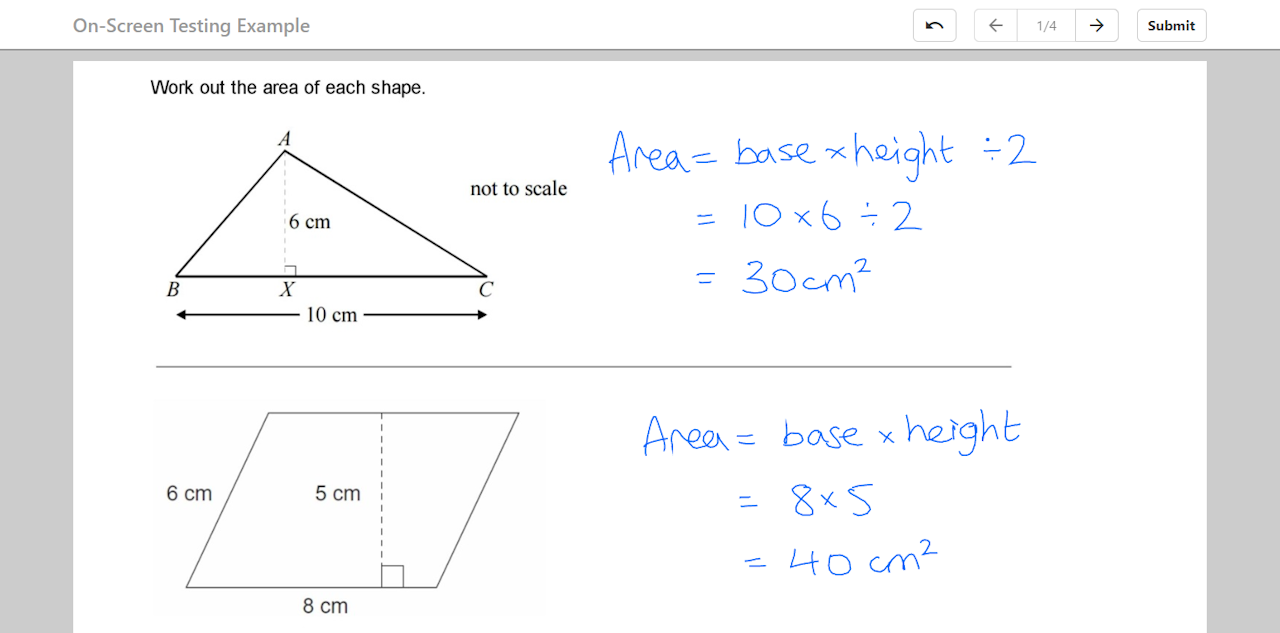
Before you start an on-screen test, explain to students how to use the platform.
Instructions for students:
- Use your stylus to handwrite neatly on the screen.
- There is no eraser, but if you make a mistake you can tap the undo button at the top.
- Tap and drag the grey area either side of the question to scroll up and down.
- Use the buttons at the top to navigate between questions.
- You cannot progress past a question until you have scrolled all the way to the bottom – this is to make sure you have read all parts of the question.
- When you have finished all questions, the Submit button will become available. Only submit when you are sure you have finished, as it is not possible to unsubmit.
Typing written answers
Students also have the option to type their answers for questions that require paragraph-style responses. This is only available when there is a large area of blank space below the question (it must be completely blank, with no lines or other annotations).