Create a new test
- Click "New" on the homepage.
- Give your test a title.
- Specify which classes will take the test. You can enter multiple classes as a comma-separated list.

Then there are three ways you can create your test:
Build from question bank
MiniTest contains a built-in bank of mathematics questions. You can also set up your own question bank, which maps to your scheme of work.
- Select the "Build from question bank" tab.
- Browse the topic list, or use the search box.
- Click the topic you wish to assess. One or more questions will appear on the right-hand side.
- Click on a question to add it. You will see it appear in the test preview below.
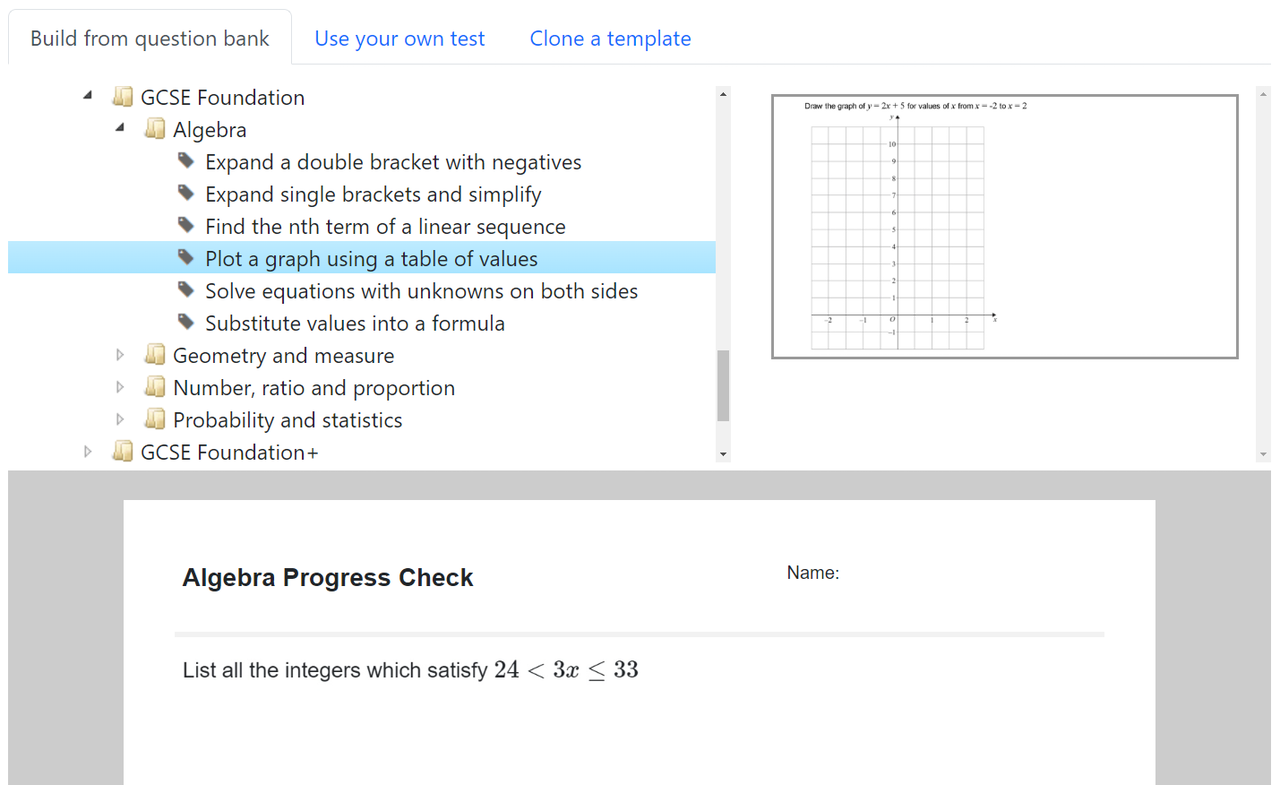
You can delete or re-order questions by hovering over them in the test preview, and using the bin or arrow icons.

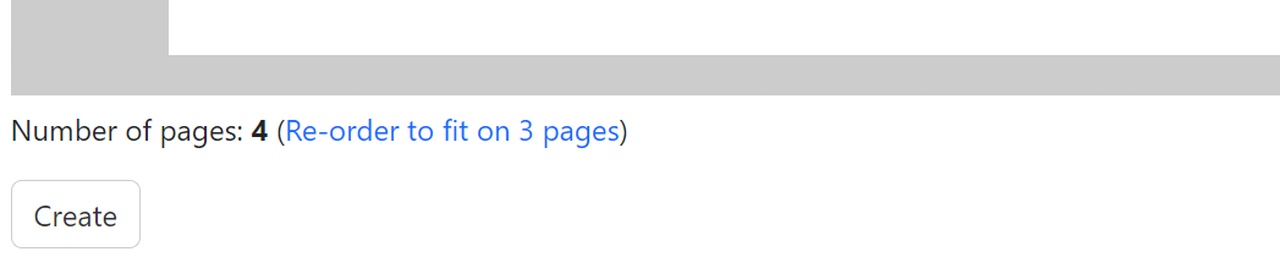
When you add lots of questions, the test may span multiple pages. Sometimes it's possible to re-order the questions to fit on fewer pages, and a link will appear to do this automatically. This uses the first-fit decreasing algorithm.
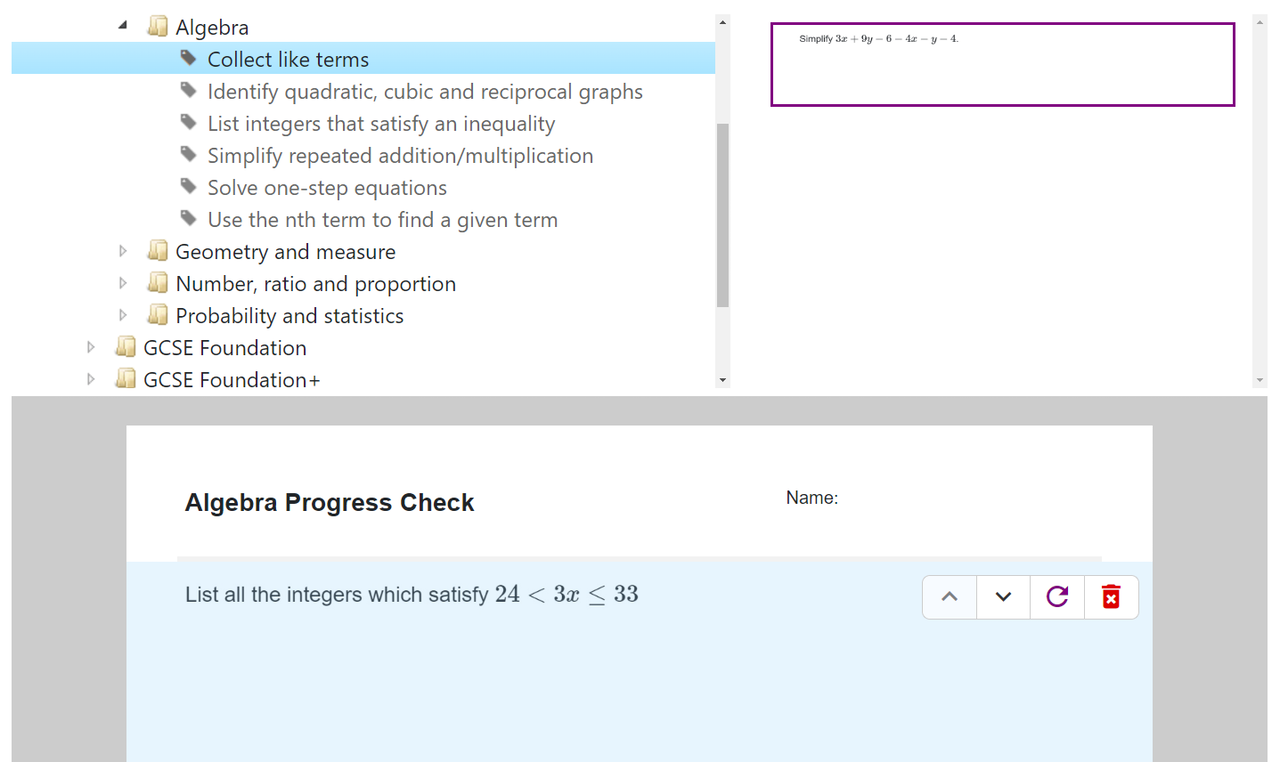
Some questions in the in-built question bank are procedurally generated, using randomised numbers. This is useful because you can assess students on the same topic again in future tests without using the exact same question. These questions appear with a purple outline, and you can regenerate a new version of a question by clicking the purple refresh icon.
When you have finished, click "Create".
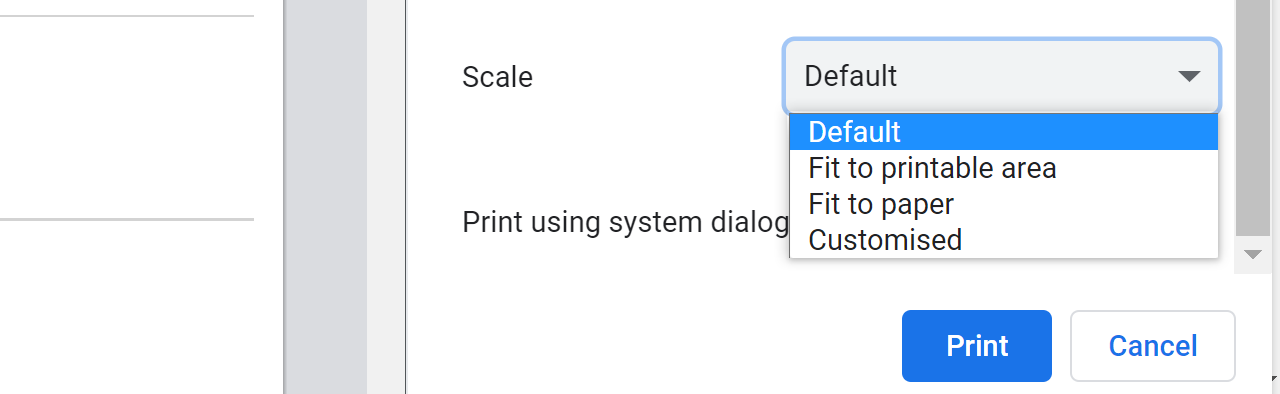
To print the test, click "Print blank test as PDF". Make sure you print it as "Actual size" or "Default". Do not select "Fit to printable area", as this will cause the questions to be misaligned when they are scanned.
Use your own test
While the question bank is often the fastest way to create new tests, you also have the flexibility to use your own test.
For example, you can use:
- Existing department assessments
- Tests you have made in word processing software, or written by hand
- Exam papers
To set this up on MiniTest:
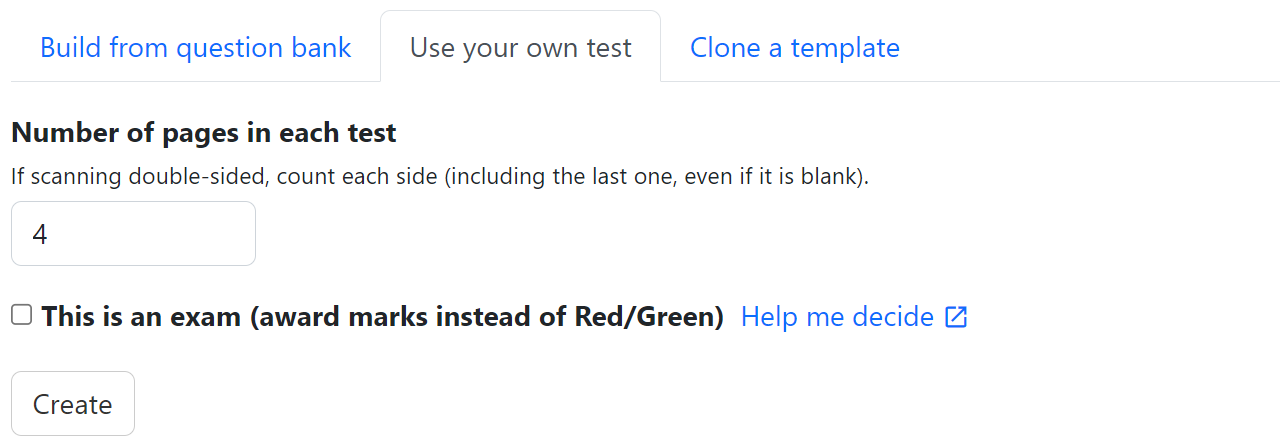
- Select the "Use your own test" tab.
- Enter the number of pages in the test. Each side counts as a page. Note that when you scan double-sided, the scanner will include the back of the last page, even if it is blank – so you must include this in your count. For example, if you have a 5-page test printed double-sided, you need to enter "6" as this includes the blank side at the end.
- Decide whether to use standard or exam marking (read the guidance).
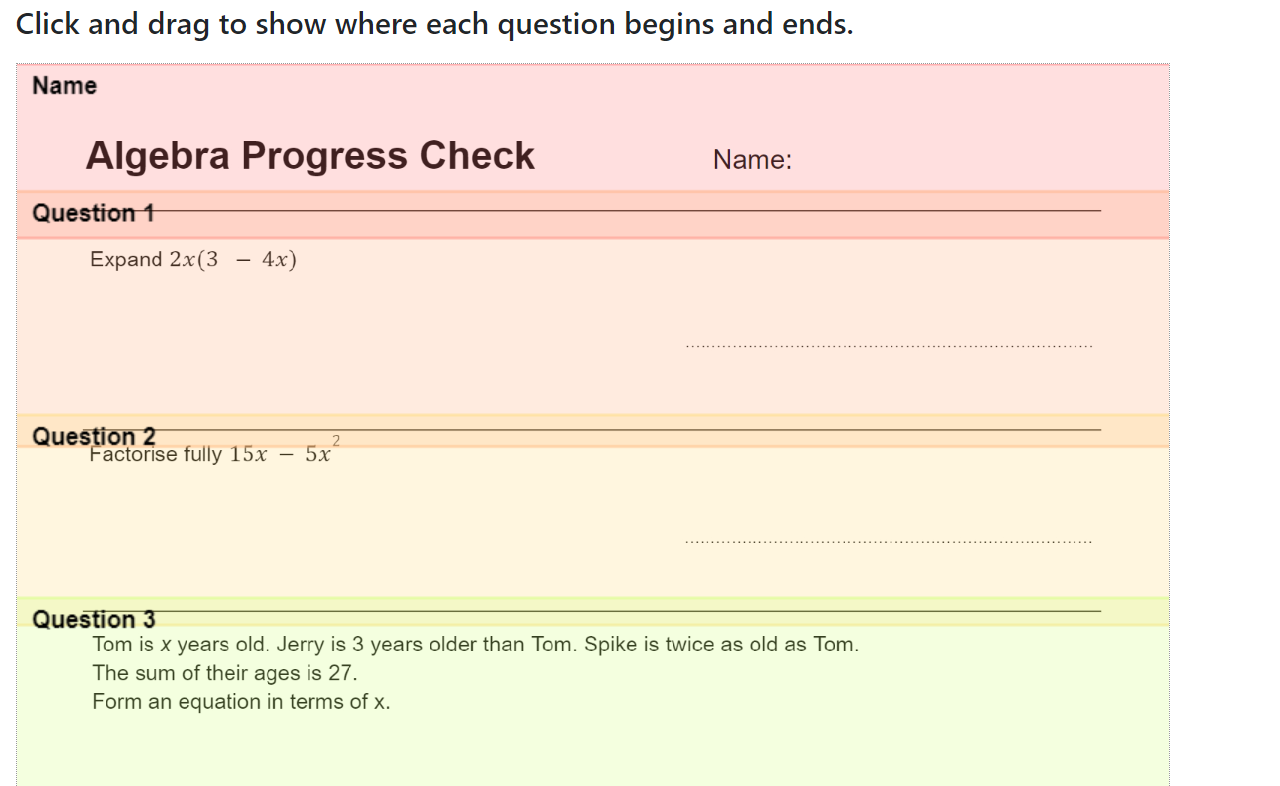
When you first upload your tests, you will need to complete a short setup process before you can start marking. The first step is to click and drag rectangles to show MiniTest where each question starts and ends. Be generous in your 'snipping', to select the whole area where students might write their answers (and a bit extra in case any of the papers scan slightly askew). It's fine for the rectangles to overlap.
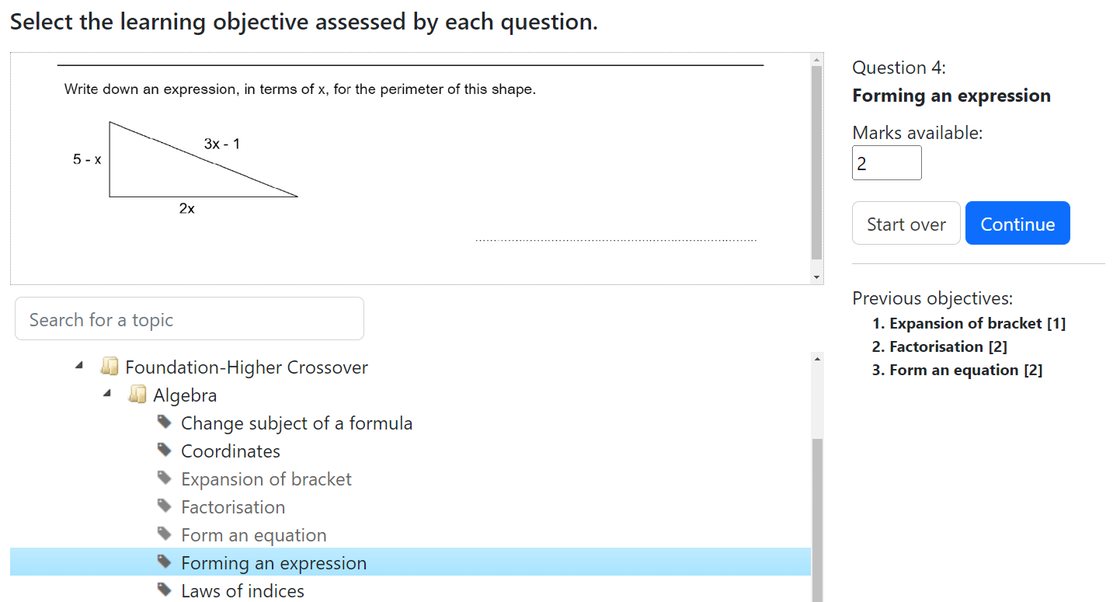
Finally, after you have identified student names, you will be asked to assign a topic to each question. These topics will appear on the test analysis, and can be used to track progress across multiple tests. If you are using exam marking, you also need to indicate how many marks each question is worth.
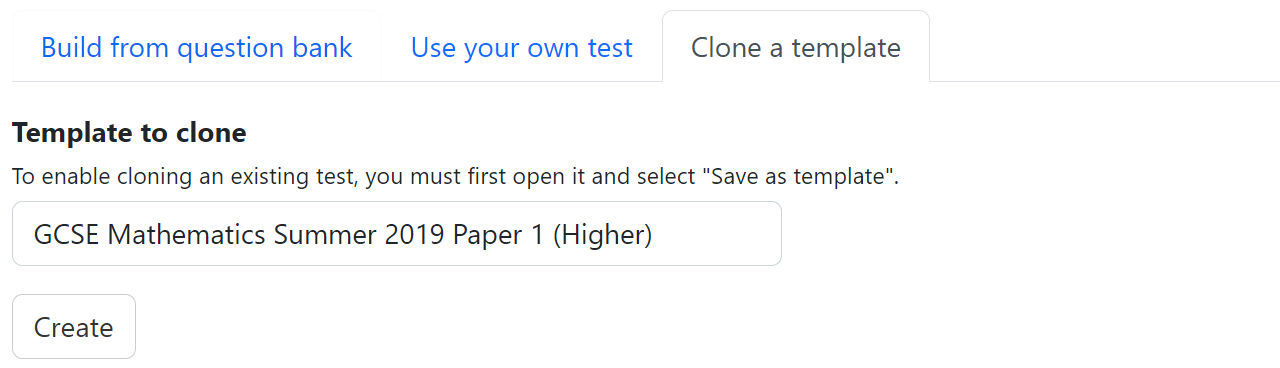
Clone a template
If you already have a test set up on MiniTest and would like to re-use it in the future, for example in subsequent academic years, you can select it and click "Save as template". This means you won't need to go through the setup process of snipping questions and selecting topics the next time you use the same assessment.
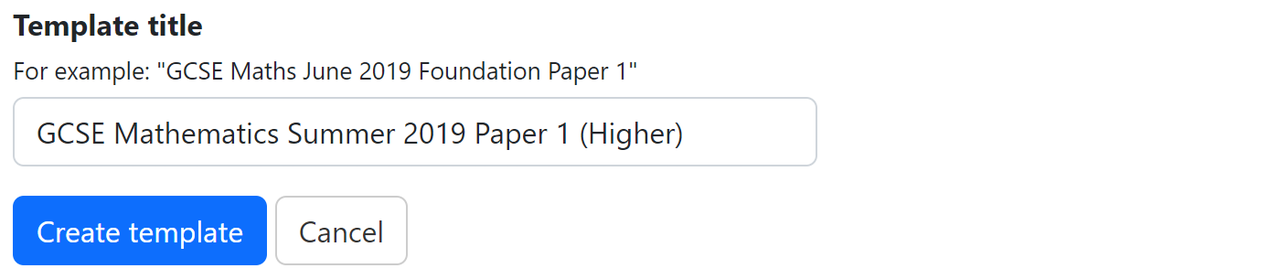
Then when creating a new test, click the "Clone a template" tab and select the template you created earlier.